Adding sound
There are two ways to load and manage audio tracks within TVPaint Animation:
- At local level (Clip-specific audio tracks), as already reviewed in those pages of the manual.
- At global level (Project-wide audio tracks), as discussed below.
Global level soundtracks are used for the whole Project, meaning they are to be played over each one of your Clips. Loading global tracks can be especially useful for background ambiances which can go through a whole sequence.
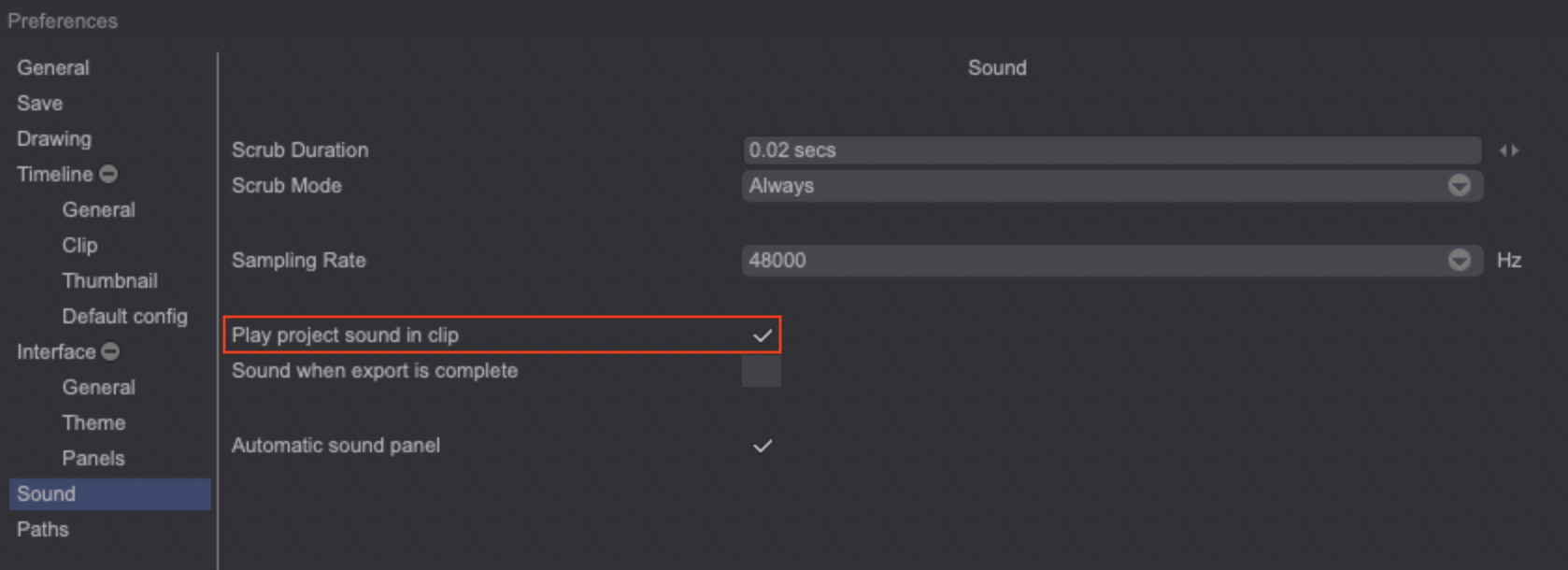
By default, global tracks are not only heard when previewing your whole Project through the Project tab interface, but also when you are playing back individual Clips through the Clip: Timeline tab interface. This can be however disabled by unchecking the *Play Project (global level) soundtracks in Clips option in the Edit > Preferences Panel > Sound section.
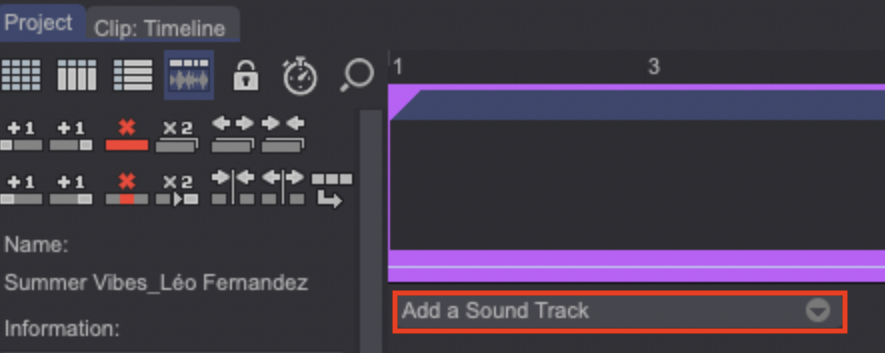
To load a global track, select the Project tab and then switch the view to Timeline Display Mode (View). Then click on the Add a Sound Track drop down menu:
- Click on Load a Soundtrack... to open a file explorer and select the track to add from there.
- Click on Add sound from Library to add an audio track from your Library.
Once loaded, TVPaint displays the selected audio track's waveform within the Project > Timeline view. You can click on the "+" icon to enlarge the waveform and access a few additional settings and options (adding a Color Group to the track, setting its Volume, Locking its position, Duplicating or Deleting it, Moving it Up or Down and Offset its start point), most of which are identical to the local track ones.
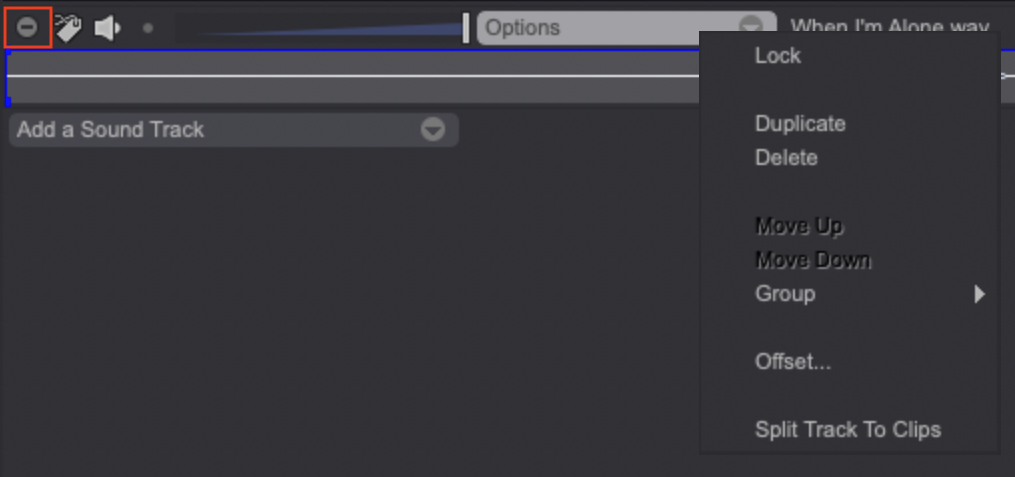
Global level tracks also have a specific option allowing you to Split a Track to Clips, which turns a global level track into local level ones and automatically sets their start time depending on the previous Clips durations.