Clips duration
There are two ways to change the duration of a Clip.
- You can adjust the length of your Layers by adding exposures or new frames with the Clip: Timeline tab selected:

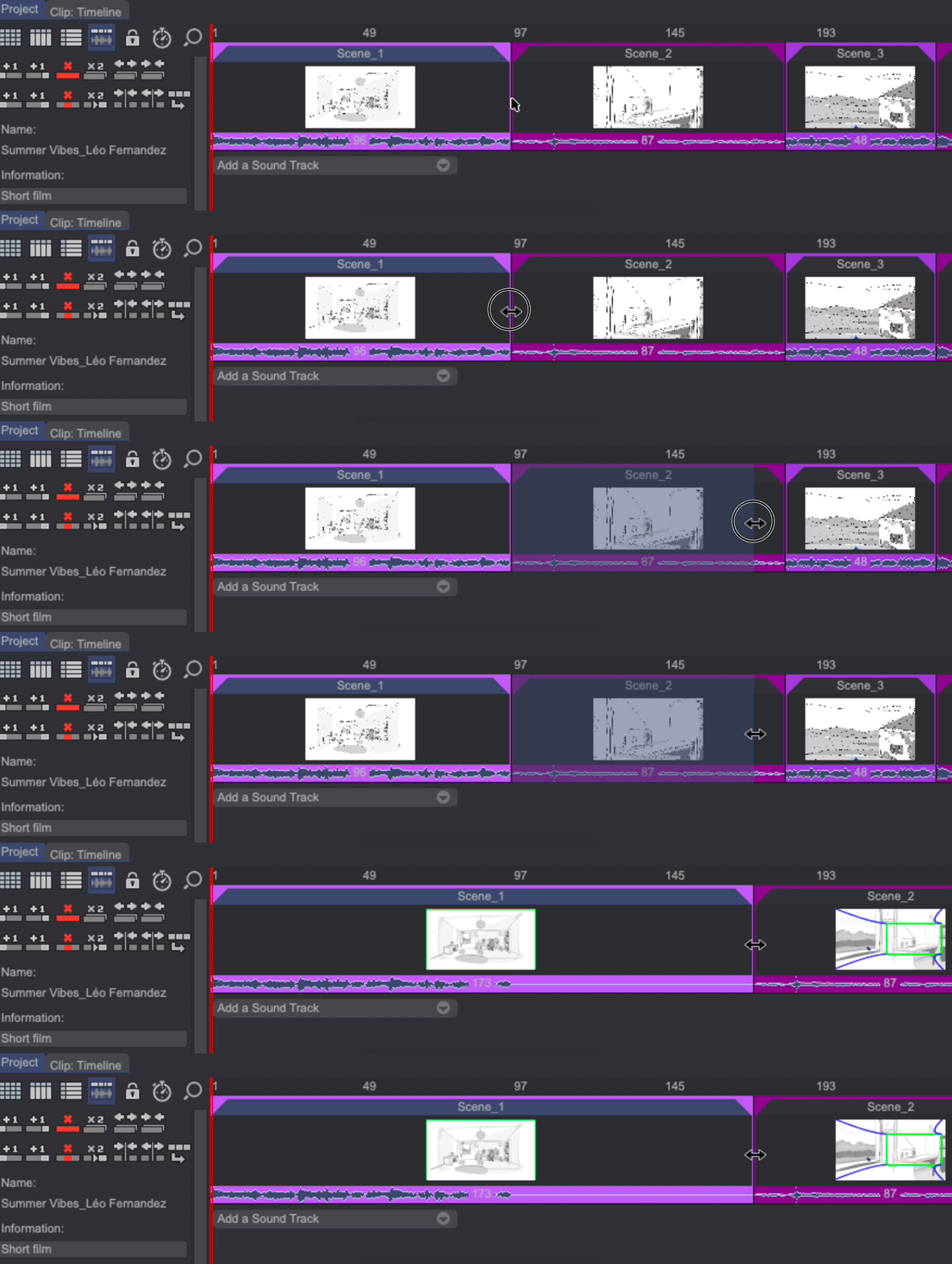
- You can stretch each Clip's duration when selecting the Timeline View with the Project tab selected. Doing so doesn't change the length of your Layers: it instead places the current Clip's Mark Out at the defined endpoint:
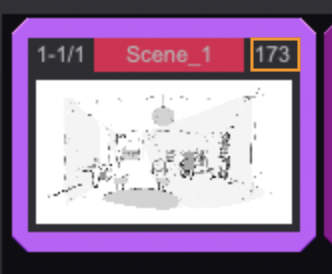
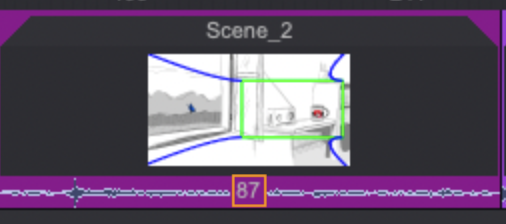
Clip durations are displayed in the upper-right corner of the thumbnails in Thumbnail View, Column View or Row View, or at the bottom in Timeline View. You can also choose to make the timecode appear in frames or in seconds.
Once your animatic is finished, click on the Play button to see the result.
警告
Be careful to have the Project tab selected if you want to play the whole animatic back. Otherwise, only the current Clip should be played back.