Share Manager
The Share Manager allows you to share a Project, a Clip or a Custom Panel to users on the same network.
The Share Manager is only available in TVPaint Professional.
Click on the paper plane  icon from the Menu Bar or on the Windows > Others > Share Manager to open the Share Manager Panel:
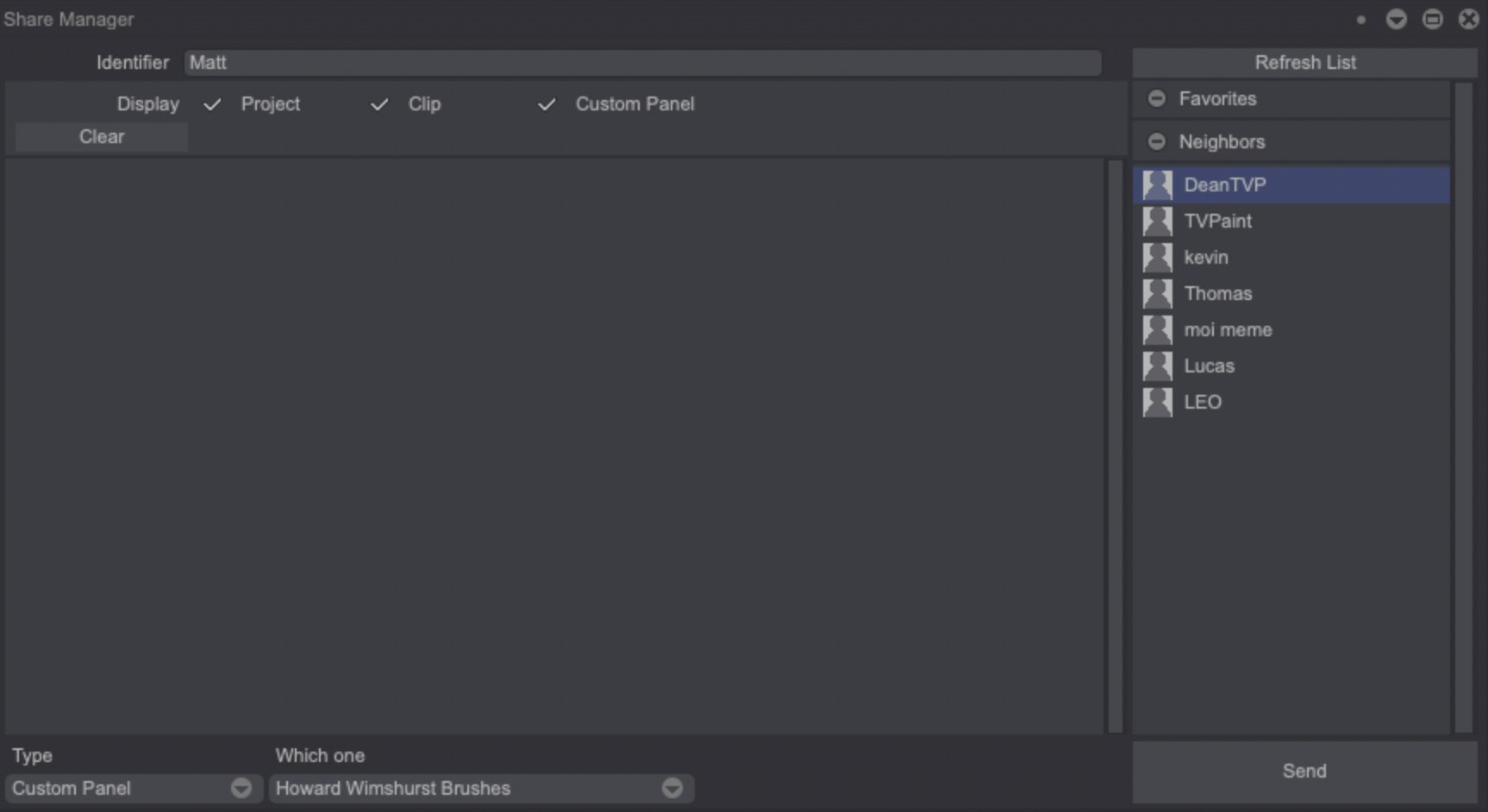
A list on the Panel's right side shows people connected to the same network as you. Online users are highlighted in green (a grey highlight depict offline ones). You can click on the Refresh List button to detect any newcomers on your network.
Right-clicking on the list will open this pop-up menu:
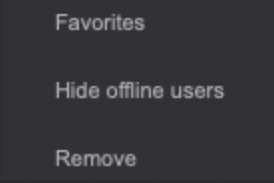
- Favorites: allow you to choose your favorite neighbors and display them only.
- Hide offline users: allows you to hide the offline users from the list.
- Remove: allows you to remove a neighbor from your list.
Since you are also connected to the same network, you will also appear in you neighbors' list. In order to be easily recognizable, you can change your Identifier through the dedicated text field at the top of the Share Manager Panel.
Two drop-down menus are located at the bottom of the Panel: Type and Which one:
- Clicking on the Type menu lets you choose the type of file you wish to send: a Project, a Clip, or a Custom Panel.
- Clicking on the Which One menu allows you to choose the precise element you are about to send, according to the Type you have just chosen:

Once you have chosen what to send, select the addressee (by clicking on his / her name, which will be underlined in blue) and click on the Send button:
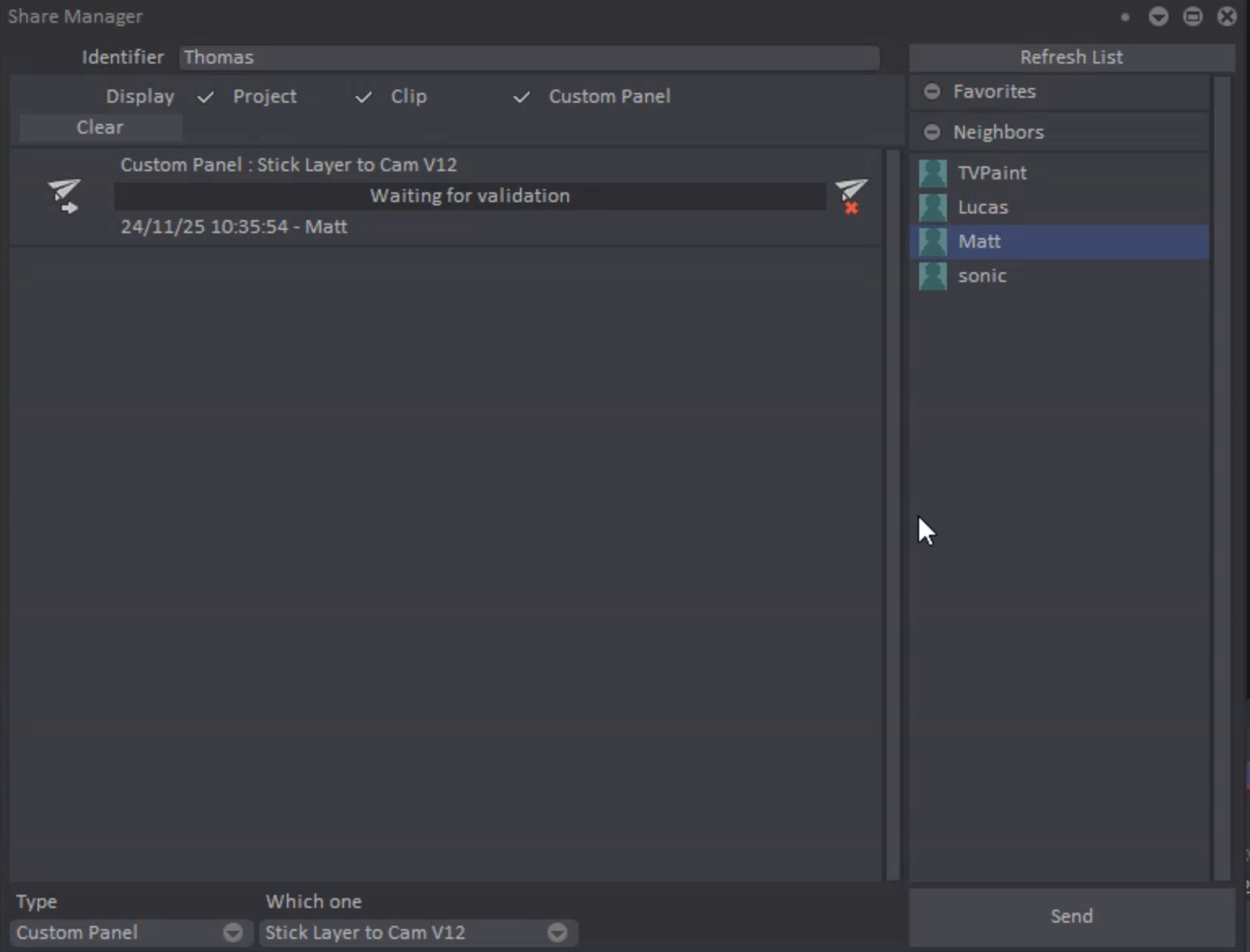
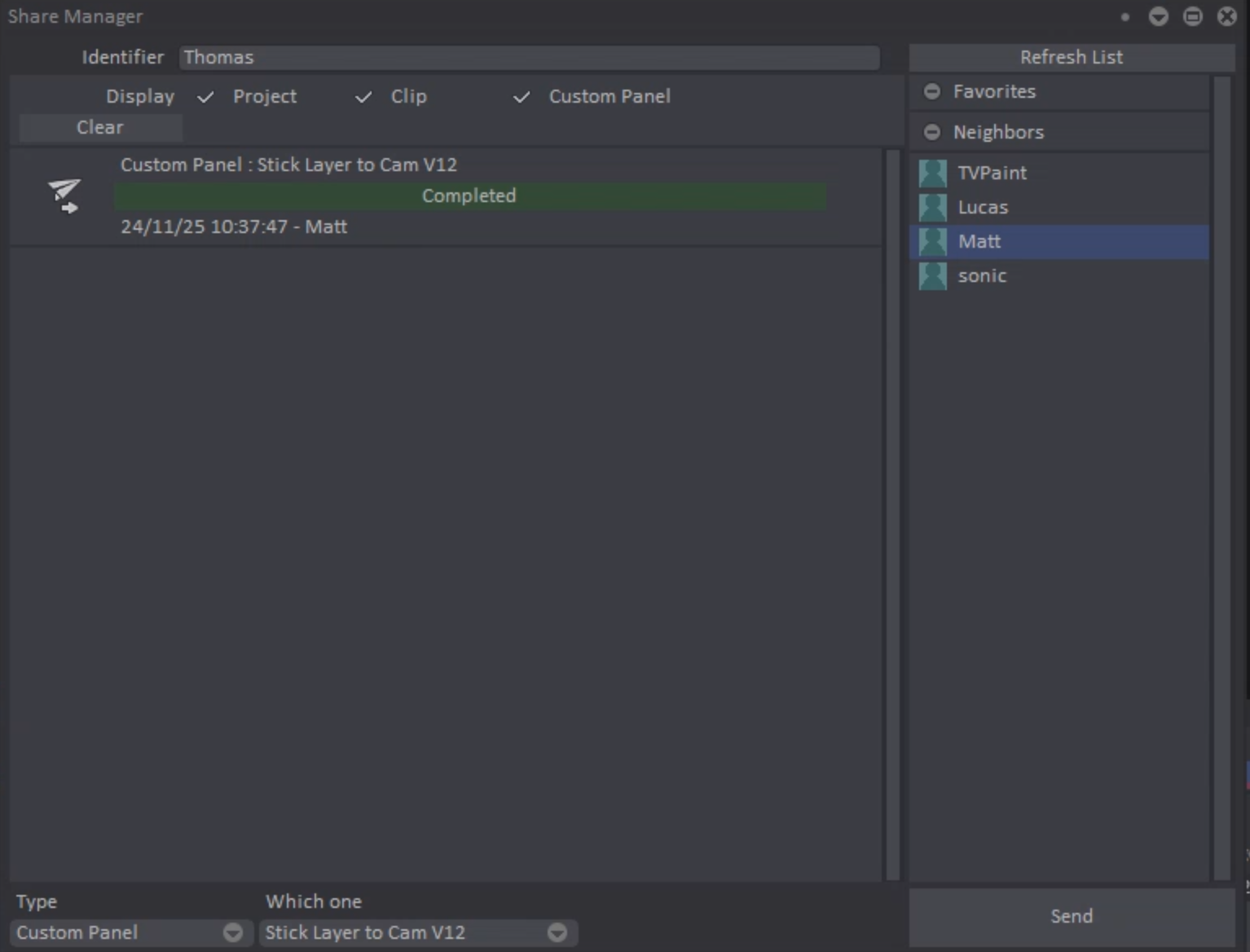
Then, your neighbor will have the choice between accepting it:
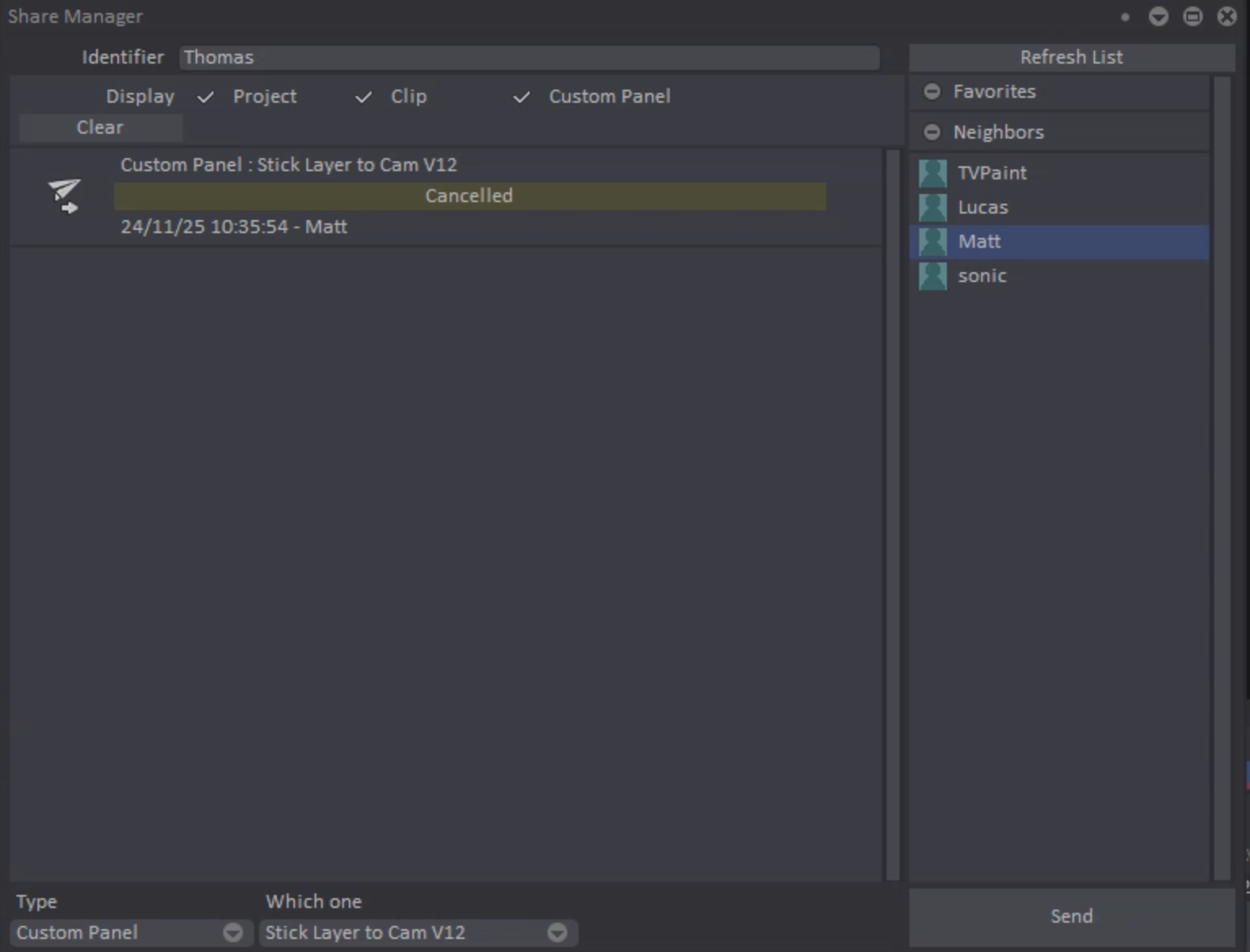
…or not:
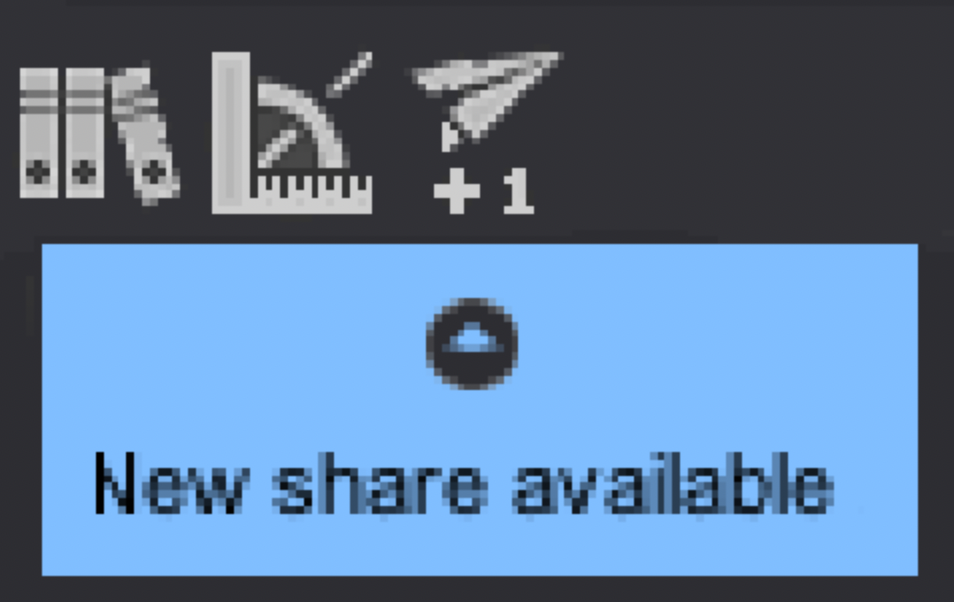
A notification will appear if someone is sending you a file. The Share Manager icon from the Menu Bar will be updated:
The Share Manager Panel will display an alert too and allow you to either accept or refuse the file:
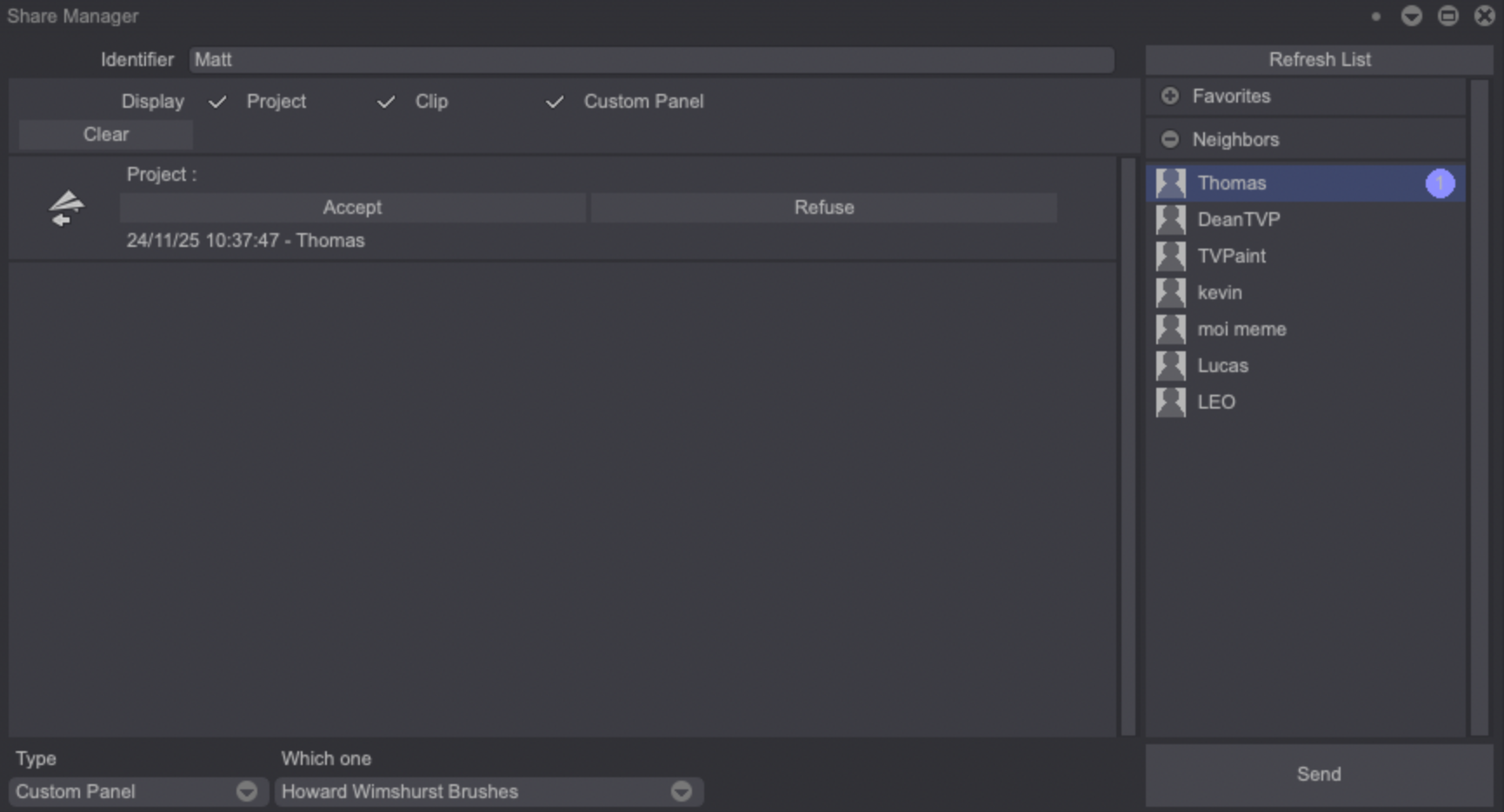
You are free to accept or refuse the file transfer. Should you accept it, the file will be automatically accessible from your interface. If you closed it by inadvertence, you can still reopen it by clicking on the folder icon located next to the listed transferred item.
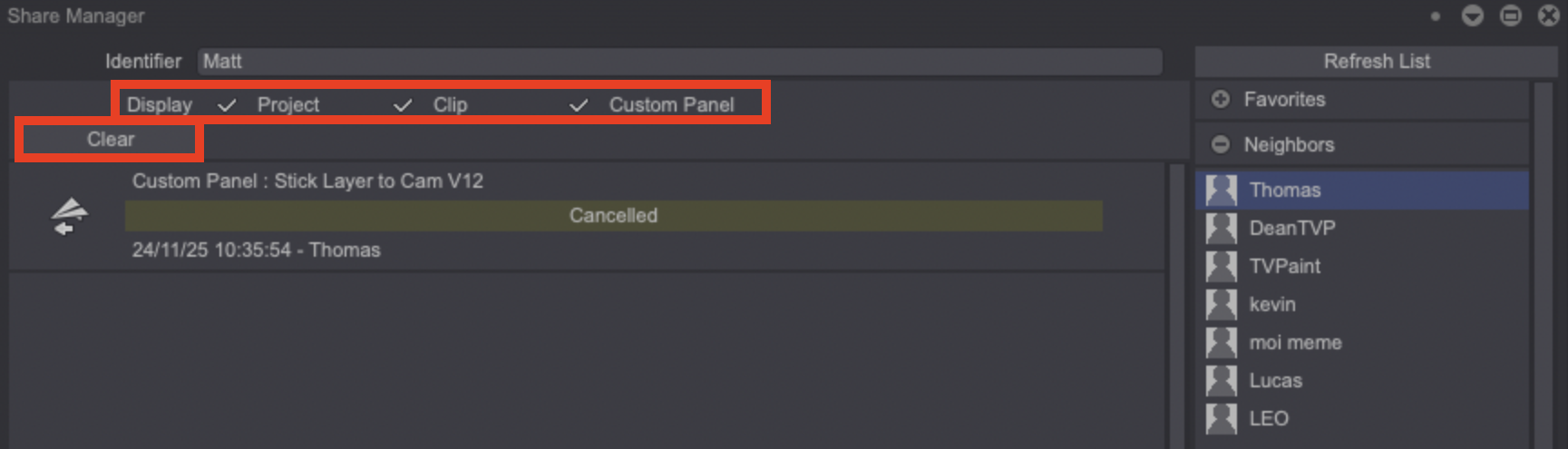
You can also choose the file types to be displayed on the Panel (Display) and Clear the whole list: