Transformation tools overview
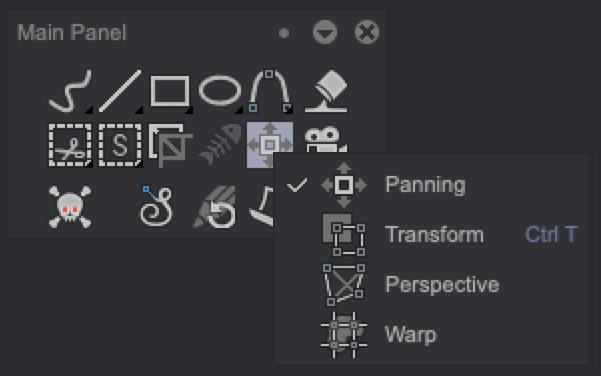
It is possible to transform your drawings using the four tools pictured below:
info
The Warp tool is only available to TVPaint Professional users.
Those tools will allow you to:
- Pan / move your images or an element on the Canvas (Panning)
- Resize, rotate and shift your drawings (Transform)
- Change the perspective of your drawings (Perspective)
- Warp / distort your drawings (Warp)
These three tools share three common parameters. The two first can be found at the top of the Tool Panel when they are selected, while the last one is located at the bottom of the Panel.
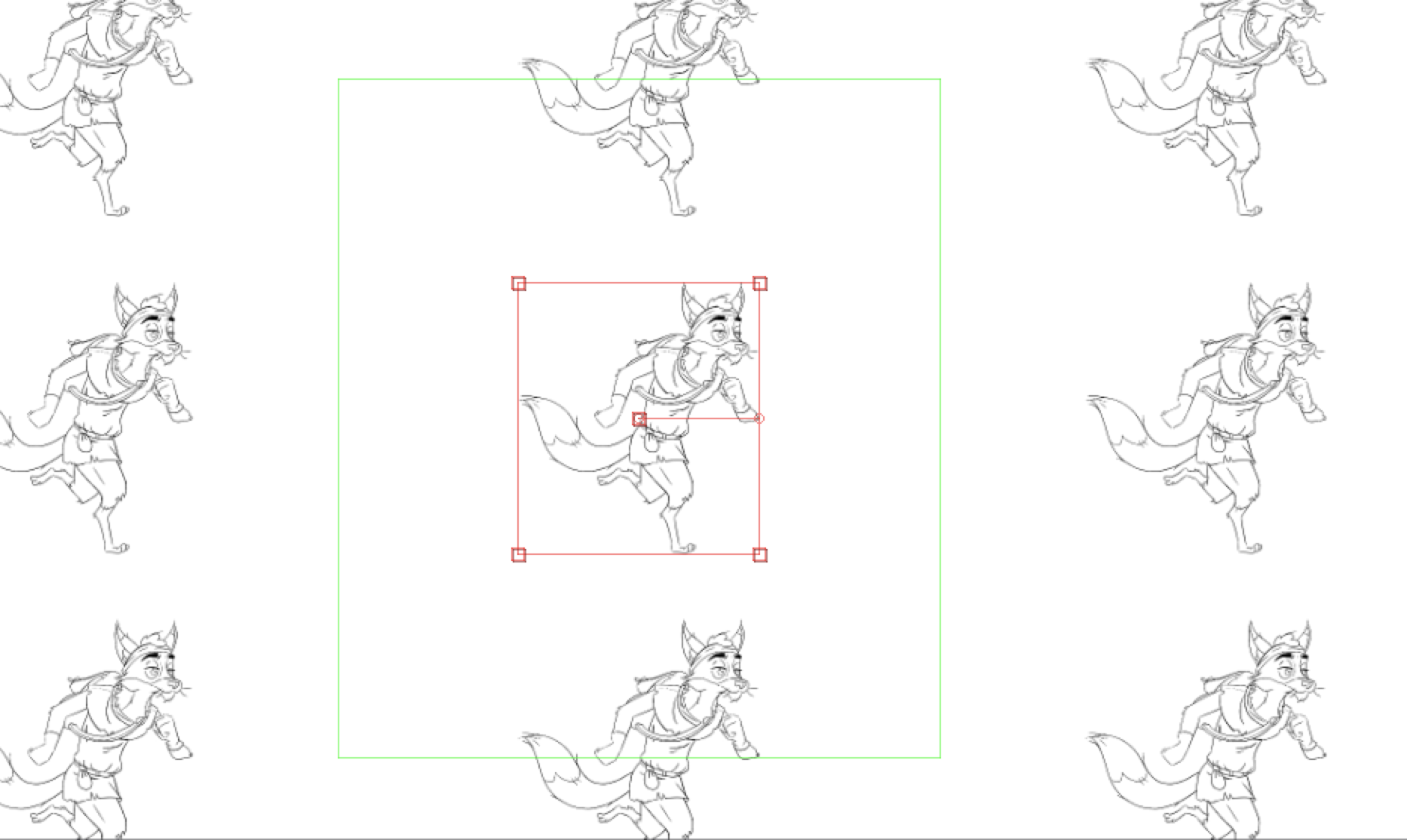
- The Fill parameter will create copies of the original element and paste them on your Canvas when you transform it:
- The Shift parameter will not create any copies of the original element:
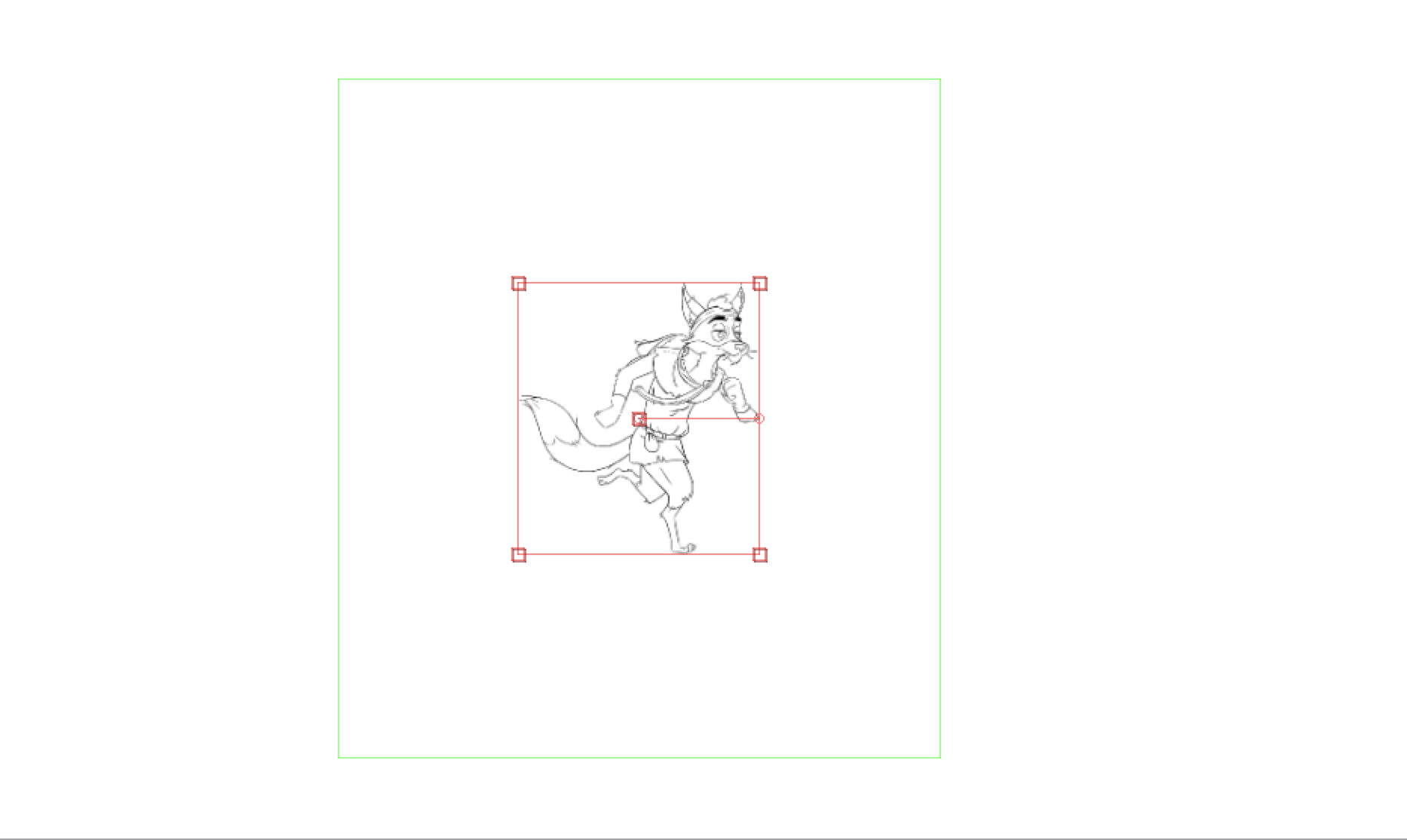
The Shift setting is the Transformation tools' default parameter.
- The Ignore Auto Break and Apply On checkbox and menu allows you to apply your transformations on several Layers at once and to precisely set the way TVPaint will handle this regarding your Instances' current timing. Select:
- Current Layer | Folder to apply the transformation to the Current Layer or Current Layer Folder (and thus, to all its Layers).
- Current Group (Layer) to apply the changes to all Layers of the same Color Group which are located at the same level (within a Folder or outside any Folder).
- Current Group (Folder) to apply the transformation to all Layer Folders of the same Color Group. All Layers within those Folders will be affected by the transformation.
- Selected Layers to apply the changes to selected Layers.
- All Layers to apply the transformation to all Layers at once.
- Finally, check the Ignore Auto Break checkbox if you want TVPaint to leave your Exposure Cells as is, even when Auto Break is turned on for some Layers. If not checked and if Auto Break is on, those Exposures will turn into Instances.
info
Preview quality for those tools can be changed in the Preferences Panel. It is set to Medium by default, which is a good balance between the preview's quality and the used resources.