Overview
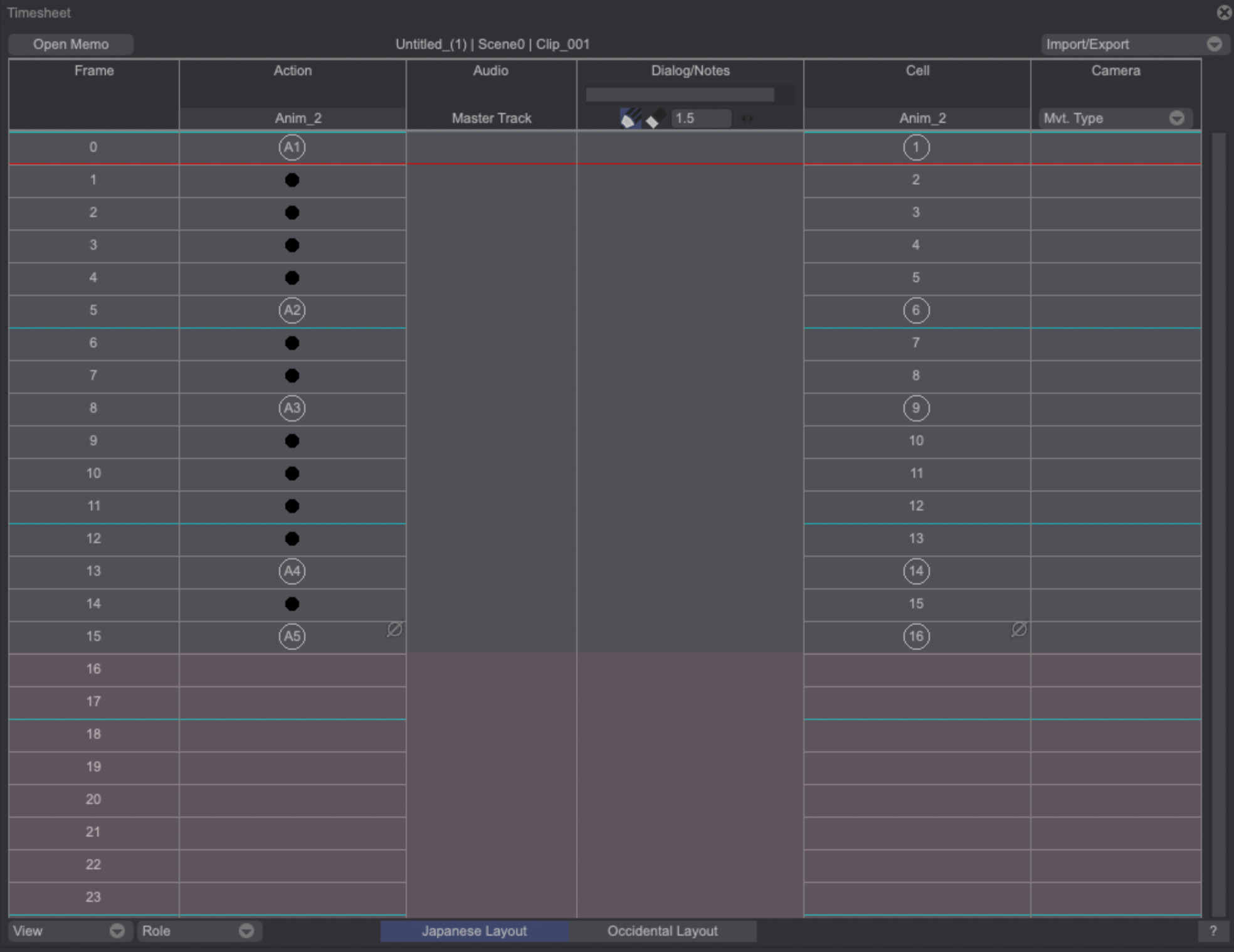
TVPaint 12 features a Timesheet Panel to help you plan your animation scene and track its progress. The Timesheet Panel can be opened through the Windows > Animation > Timesheet menu. By default, the panel is set to Japanese layout. Various menus and buttons let you customize the Timesheet’s layout, open the Memo Panel and export it in various formats:
Memo Panel
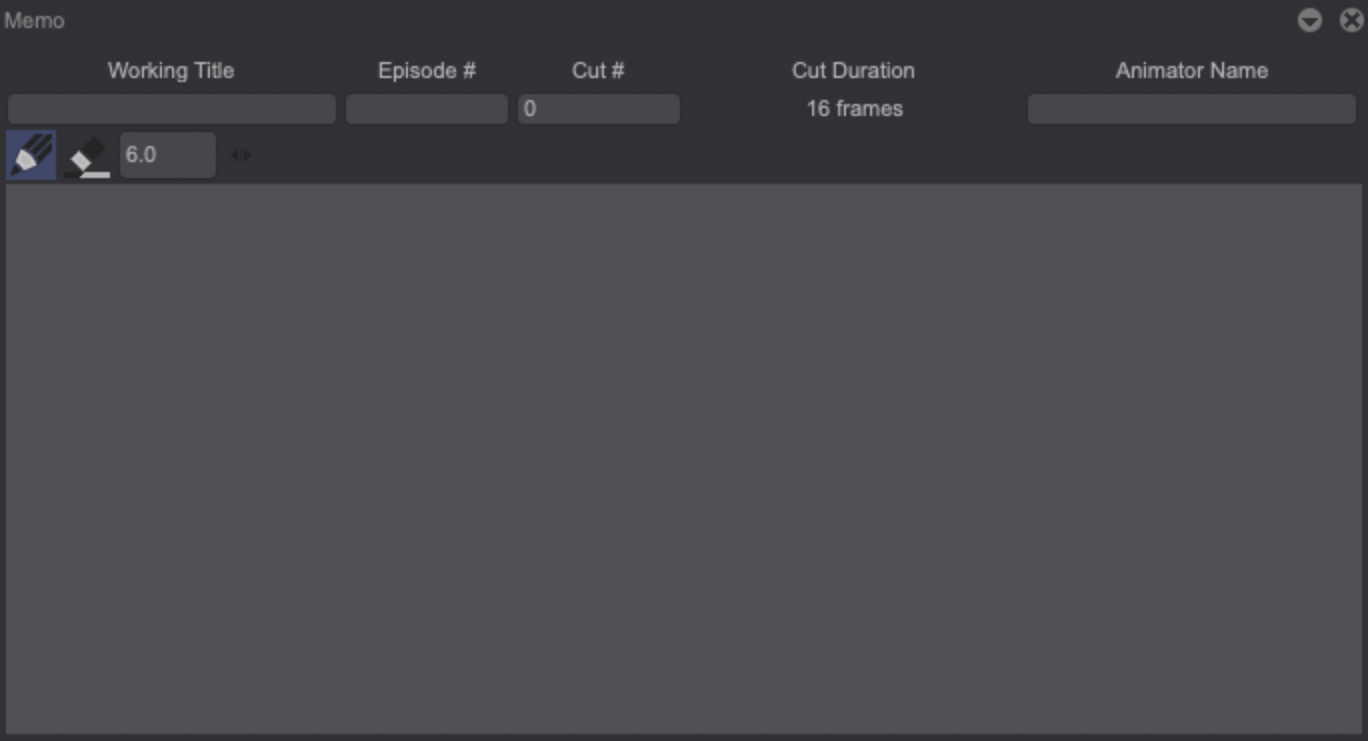
Click on the Open Memo button on the top-right corner of the Timesheet to open the Memo Panel. It can be used to log information about the project, scene or episode you are working on (work title name, episode number, cut number, cut length, animator name) and draw specific instructions (camera moves, adding context etc.) using the resizable pen brush and eraser:
Layout View menu and Columns
-
At the bottom of the window, you can notice two buttons to switch layouts. The Japanese Layout displays the following columns by default: Image number, Action, Audio, Dialogues/Notes, Cell and Camera. The Occidental Layout displays the same columns except for the Action and Cell ones (dedicated to Genga and Douga artists) which are replaced with a Layers column.
-
The View drop down menu lets you customize the general layout:
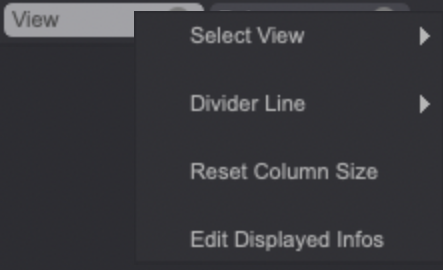
- Two different Views are available: Page View which limits each page to 72 images, and Scroll View which lets you scroll through the different images without any limit, like the regular Timeline.
- Divider Lines are blue lines dividing groups of images to make the Timesheet easier to read. It is set to 6 images by default, but you can set it to 2, 3, 12 and 24 as well.
- Columns are resizable, so you may want to reset all their sizes at once at some point. This can be done through the Reset Column Size option.
- Click on Edit Displayed Info to choose what elements are to be displayed on the Timesheet. You can choose to show / hide the following elements: the Playhead, Mark In, Mark Out, Audio Column, Dialog / Notes Column, Camera Column, Animation, CTG, Puppet and Inactive Layers.
-
The Timesheet also displays the following columns by default:
- The Audio Column displays a waveform of your Master track or any loaded track in your Clip.
- The Dialog / Notes column let you take notes using a resizable pen brush and eraser.
- The Camera column allows you to display the Camera’s keys and associated values for a specific parameter (Position, Rotation, Zoom and Movement Type).
The Mark In and Mark Out are depicted on the Timesheet as light green / light red overlays positioned before (Mark In) and after (Mark Out) their location. You can see a example of this on the screenshot above (Mark Out only).
Pre-and post-behaviour icons appear on the top-left and bottom-right corners, respectively.