Import and Exports
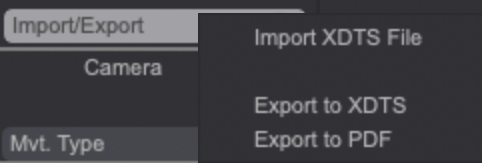
You can export your Timesheet as a PDF file. It is also possible to import and export Timesheet information from and to XDTS data. This can be done through the Import / Export button:
PDF export
Click on the Import / Export button and select the Export to PDF option to export a PDF version of your Project's Timesheet.
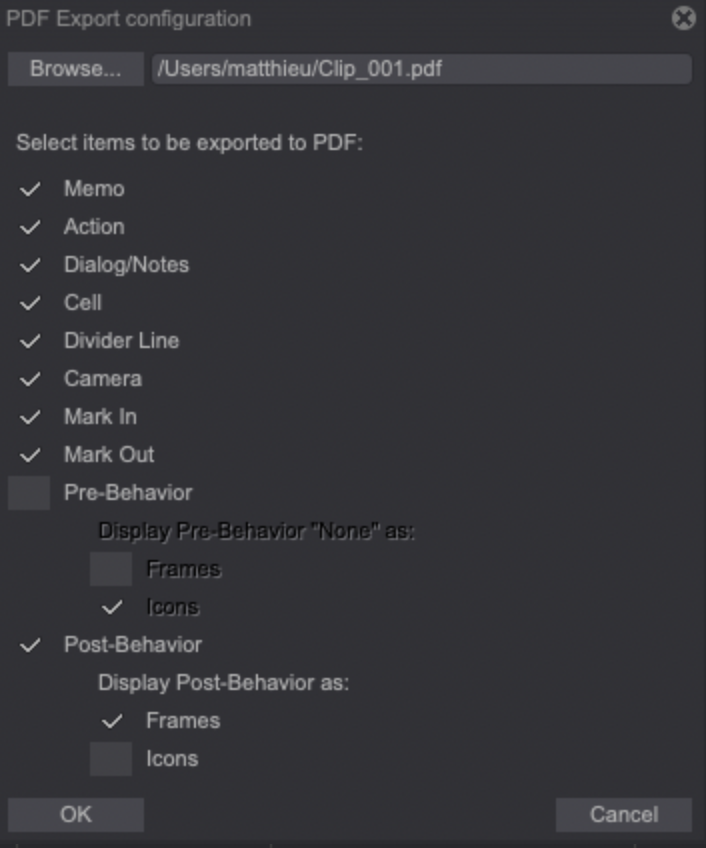
Each PDF page is made of 72 images. Information to be exported can be tailored through the PDF export configuration Panel, which also features a way to turn some post-behaviour symbols into traditional timesheet marks:
-
Post-Behaviors can be displayed as Icons (like on the Timeline and Timesheet) or as Frames. Selecting the Frames option means that the following behaviors are to be exported using traditional notation:
-
None: a wavy line runs until the end of the Project or Mark Out.
-
Hold: a straight line runs until the end of the Project or Mark Out.
-
Loop: frames are displayed again, starting from the Layer’s first frame.
-
Ping-Pong: frames are displayed again by going backwards (symbols appear before their exposures, in reverse order).
-
Pre-Behaviors can also be displayed as Frames, but only the None Pre-Behavior is affected by this setting. It is then displayed either as an empty image (cross symbol) if there is only one frame before the Timeline's first position and the Layer’s start. If there are more frames, it is displayed as a cross symbol followed by a wavy line.
XDTS import and export
You can import an XDTS file to update your Timesheet through the Import / Export > Import XDTS file menu on the Timesheet Panel.
Three import options are available:
-
Add New & Keep:
- Creates Layers mentioned in the XDTS file (length and Roles included) but not present in TVPaint.
- Layers which are mentioned in the XDTS file but already exist in TVPaint are not modified.
- Other Layers are kept intact.
-
Add New, Update & Keep:
- Creates Layers mentioned in the XDTS file (length and Roles included) but not present in TVPaint.
- Layers mentioned in the XDTS file and which already exist in TVPaint are duplicated (their source turns inactive). A suffix is appended to their name (“_xdts_update”). Their Roles and images are updated.
- If an existing Layer is shorter in the XDTS file: images are deleted from its right end in TVPaint to match the length described in the XDTS file.
- If an existing Layer is longer in the XDTS file: missing images are created, exposure cells added, and Roles applied to those new images.
- Other Layers are kept intact.
-
Add New, Update & Erase:
- Same behaviour as option two, except for Layers present in TVPaint but not mentioned in the XDTS file. Those are deleted when selecting this option.
Finally, you can export your Timesheet as an XDTS file to import this information in another software through the Import / Export > Export to XDTS option. You can either export the Action column or Cell column data.
Limitations of XDTS import / export
It is important to be aware of some limitations of the XDTS import and export features. Those limitations are mainly related to TVPaint's Pre and Post-Behaviors which can't be easily translated to other software.
We generally recommend to use those XDTS import and export features with Projects relying on None and Hold Post-Behaviors to prevent issues from arising when going back and forth with other software.
- None and Hold Post-Behaviors are both supported for export (as regular frames) and import. TVPaint automatically applies those Post-Behaviors when necessary upon import.
- Loop and Ping-Pong Post-Behaviors are not fully supported and will be exported and imported as regular frames. You may then have to delete images which have been created upon import for those Layers since they may mess your loop points up.
- The Ping-Pong Post-Behavior may cause some confusion regarding Timesheet symbols from other software (since frames are repeated in a mirror pattern, Roles for such frames may appear before their repeated exposures).
- The None behavior is the only Pre-Behavior supported for both export and import.
- The Camera Layer's Pre and Post-Behaviors are not saved in the XDTS export file and cannot be imported from other software's XDTS files either.
Some other things to consider are Roles available in TVPaint but not easily translated to other software, such as TOEI Animation Digital Exposure Sheet:
- Other software may not make the distinction between To Be Done and Completed Inbetweens.
- Other software may not have an equivalent to the Breakdown Role. For example, is translated to a Special Inbetween in TOEI Animation Digital Exposure Sheet.
- Finally, empty images (marked as "X") are also displayed as such in the CELL column of TOEI's Animation Digital Exposure Sheet software.