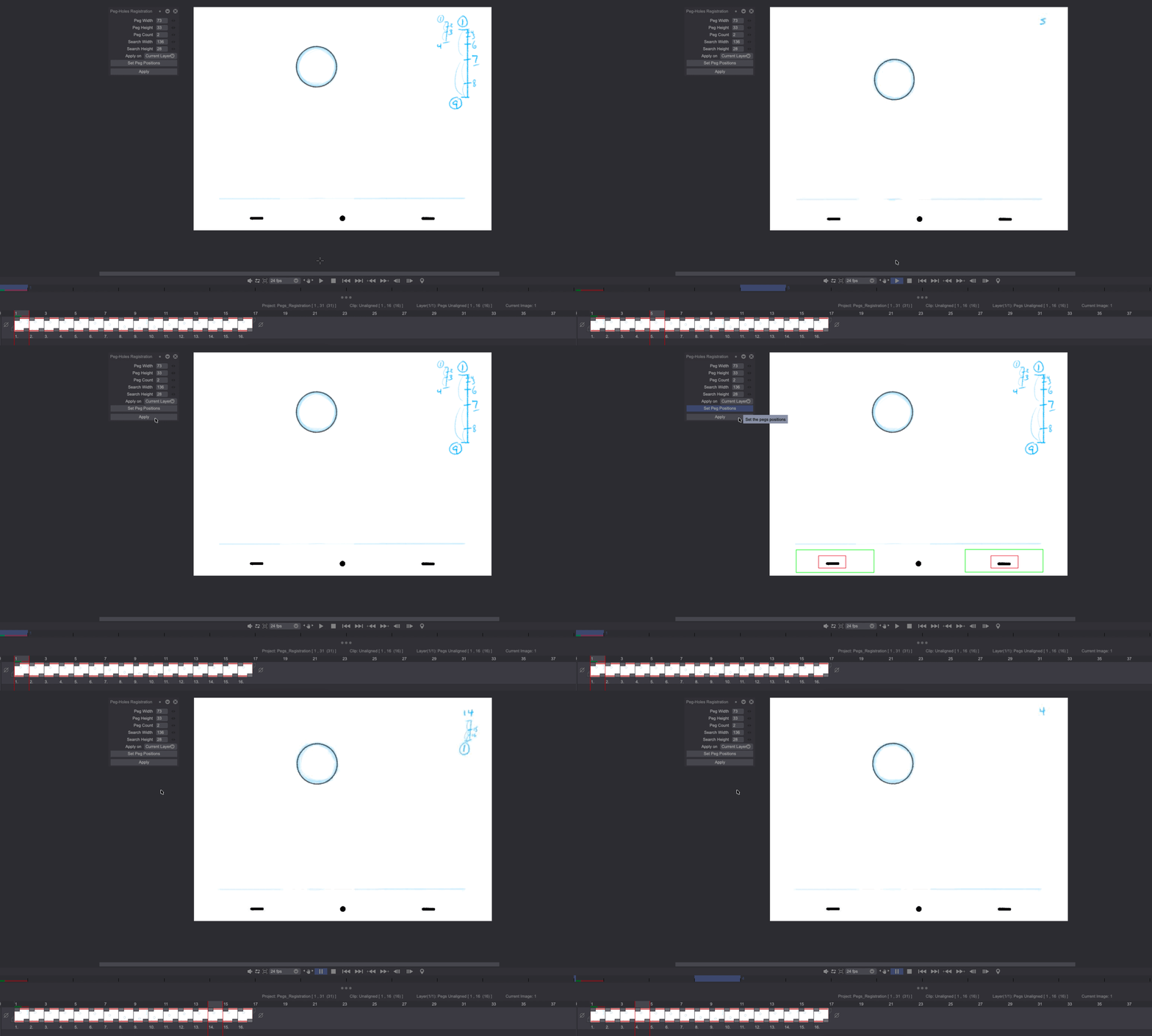
Peg holes registration
“Pegs” are little holes made in paper sheets to hold them together on a “peg bar”, in order to draw and animate.
When scanning an animation made on paper using an auto feed scanner, you may end up with misaligned scans. As a consequence, the end result when playing the scanned animation back may not be up to professional standards.
To fix this problem, TVPaint Animation includes a tool named Peg-Holes Registration, which realigns a scanned animation following its drawings' peg holes positions.
Open the Pegs Registration_David Nethery Project from the Example Projects to learn how to use this tool.
First, click on the Window > Animation > Peg-Holes Registration main menu. A new Panel should appear:
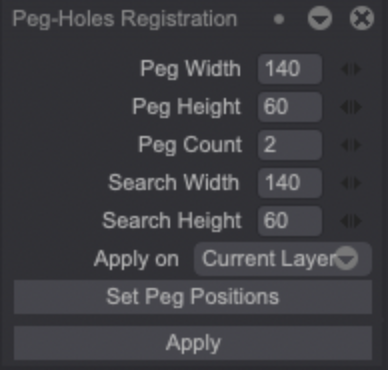
This Panel lets you configure the peg holes detection areas' size (Height and Width). To see the peg holes detection areas on your Canvas, click on the Set Peg Positions button:
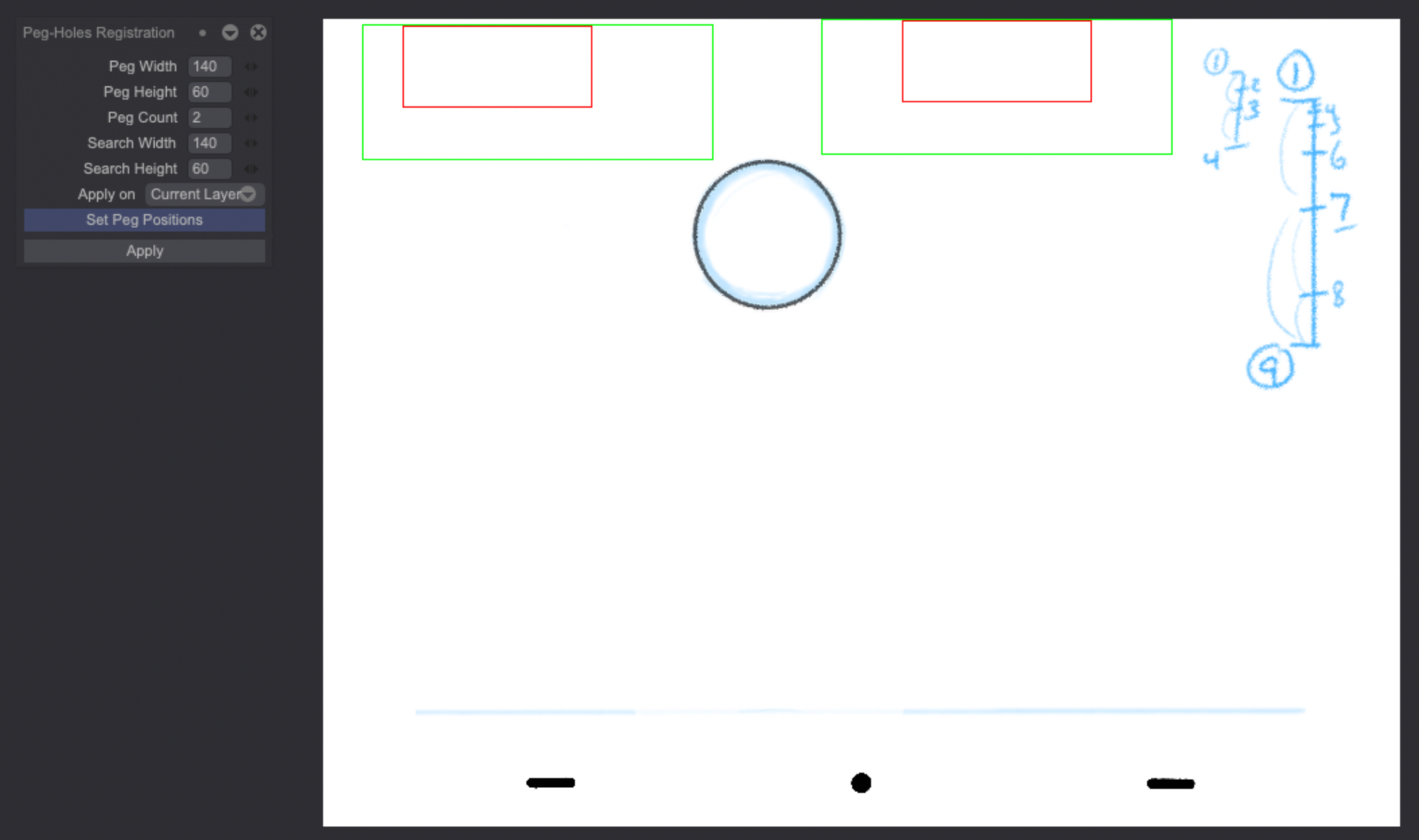
Place the two red rectangles so they cover the area of the original peg holes. Adjust their size and alignment and make sure they don't touch the green rectangles throughout the whole animation.
Be careful: do not place the red rectangles too close from the pegs! Keeping a safe area around the pegs makes the registration process much more effective.
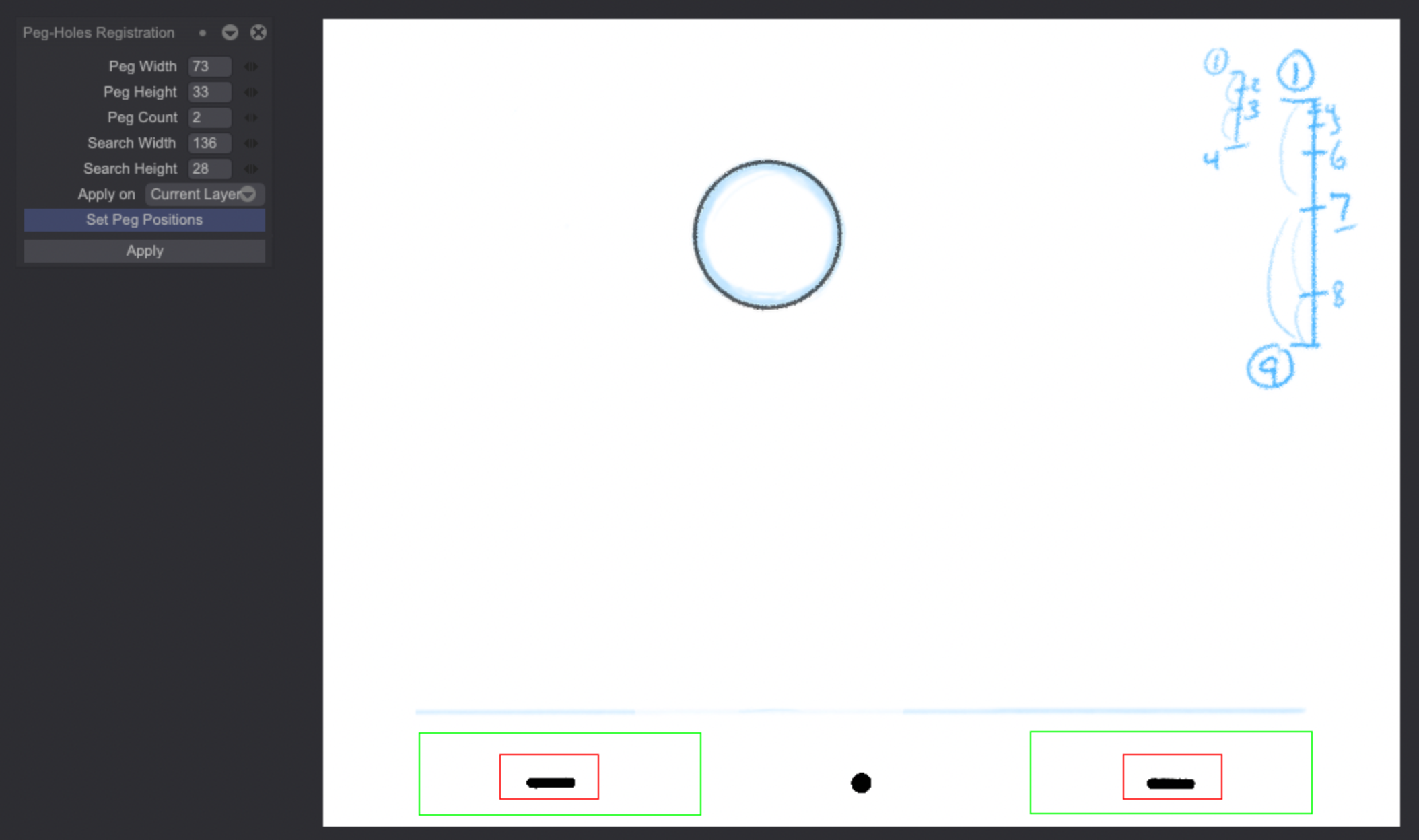
Once things have been set, click on the Apply button. The scanned animation should have been automatically realigned. Note that you can choose any image from your animation to set the Peg-Holes Registration tool: all of the Layer's images should be realigned regardless of the selected image.