Edit Scenes and Clips
Additional action buttons can be found in the Project tab's Storyboard Panel. They be used to further edit your Scenes and Clips:
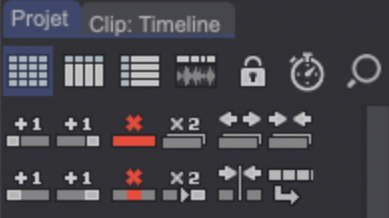
- The Join Scene
 button allows you to join the current Scene with the next one:

- The Split Scene
 button lets you divide a Scene after the current Clip. The remaining Clips form a new Scene:

- The Duplicate Clip
 button allows you to duplicate a Clip and all its contents (Layers, frames etc.):

- The Duplicate Scene
 button lets you duplicate a Scene and all its contents:

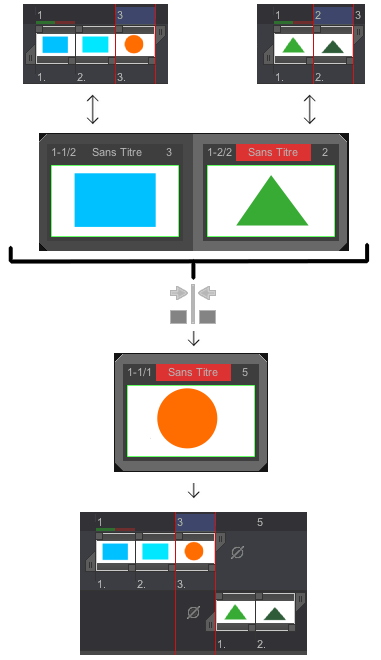
- The Merge Clips
 button allows you to merge the current Clip with the next one into the same Clip. Images previously belonging to the Clip which has been merged with the current one are put on a separate Layer:
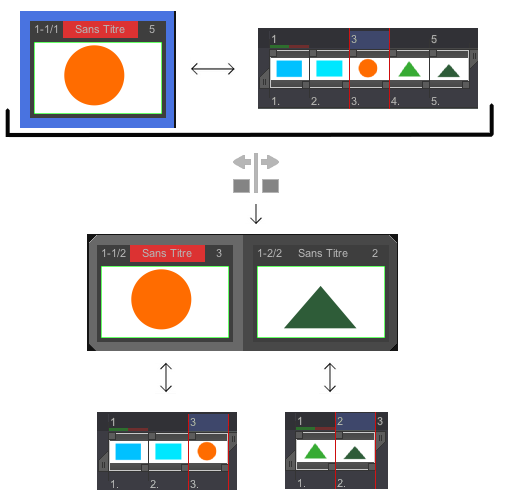
- The Split Clip

button lets you split a Clip into two Clips (resulting into a Scene containing the two newly created Clips). The Clip to be split has to contain several images: the split occurs at the frame which comes after the playheads' location on the Timeline:
warning
The Split Clip action button is only visible if you have selected the Storyboard's Timeline View. Storyboard Display Modes are reviewed in the subsequent pages of the user manual.
TVPaint Animation automatically numbers your Scenes and Clips. Those identifiers can be seen in the top-left corner of Clips' thumbnails:

In the screenshot above, "1" denotes the Scene's number (which means this Scene is the first one of our Storyboard). The numbers "2/3" indicate that the Clip pictured is the second one out of the three Clips of the current Scene.