Export options
You can export and save completed rigs, rigged animations to reuse them later on. You can also turn Puppet Layers into Animation Layers, should you want to have more control over the final result and redraw some parts of your animation.
Saving a rig
You can easily save a completed rig to use it later on on a different Project or to share it with other animators through the Image Library. To do so, just click on the Save Rig button located at the bottom of the Tool Panel when it is set to Rigg Mode:
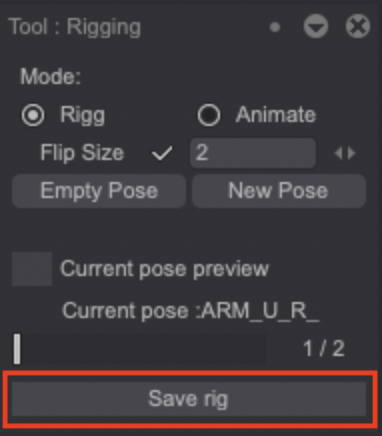
You can also right-click on a Puppet Layer Folder and select the Save Rig option there.
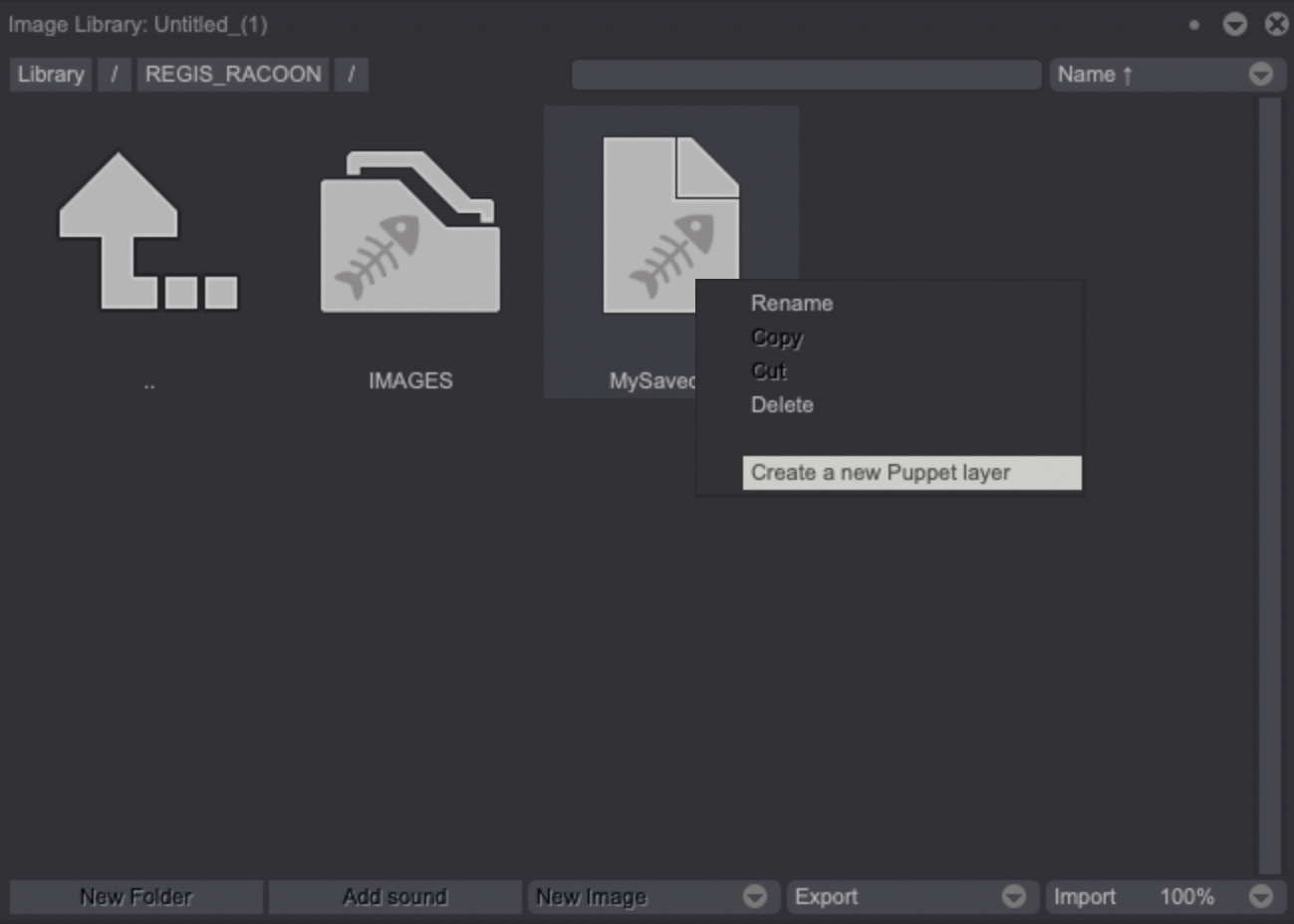
Your rig is then saved into your Image Library's current puppet folder. To use it in another Project, follow those steps:
- Open the Image Library.
- Click on the Export button located at the bottom of the Library Panel and choose to export either All the Library or your whole Puppet Folder (which must be selected).
- Name and save the Library file.
- Create a new Project, open the Library and click on the Import menu. Select your exported file to import it.
- You should then be able to access your saved rig file within the Library.
- Right-click on it and select the Create a new Puppet Layer option to recreate the saved rig in your new Project:
Saving a rigged animation
To save a whole rigged animation click on the Save Animation button located at the bottom of the Tool Panel when it is set to Animate Mode:
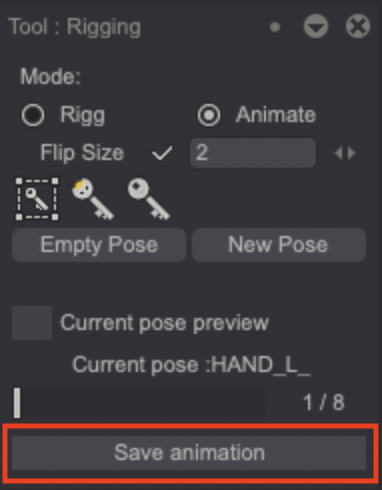
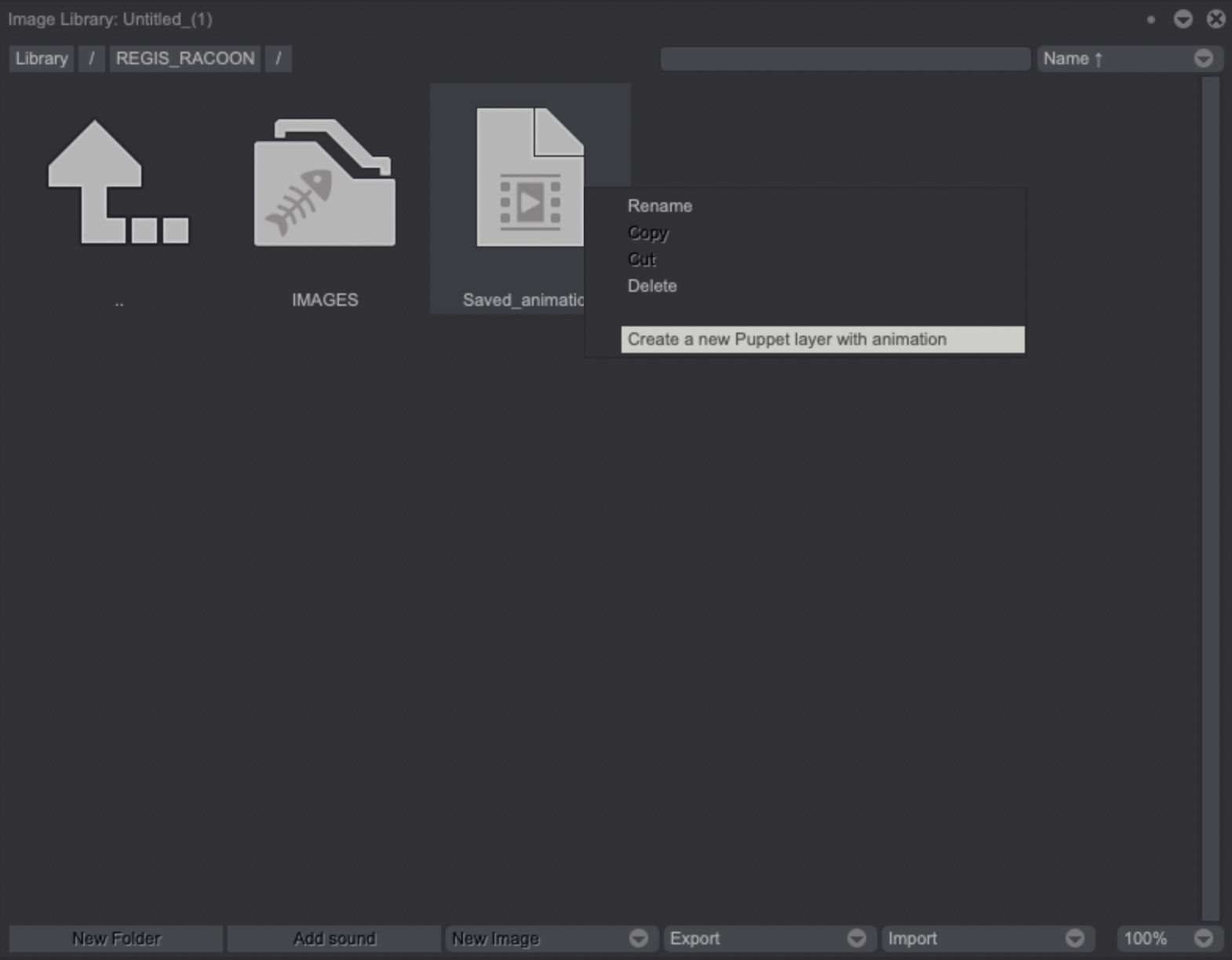
Your rigged animation is then saved into your Image Library's current puppet folder. To use it in another Project, follow those steps:
- Open the Image Library.
- Click on the Export button located at the bottom of the Library Panel and choose to export either All the Library or your whole Puppet Folder (which must be selected).
- Name and save the Library file.
- Create a new Project, open the Library and click on the Import menu. Select your exported file to import it.
- You should then be able to access your saved rigged animation file within the Library.
- Right-click on it and select the Create a new Puppet Layer with Animation option to recreate the saved rig in your new Project:
Turning Puppet Layers into Animation Layers
Puppet Folders can be transformed into Animation Layers so you can rework parts of your animation. To do so, right-click on a Puppet Layer Folder to access the Transform into Anim Layer menu:
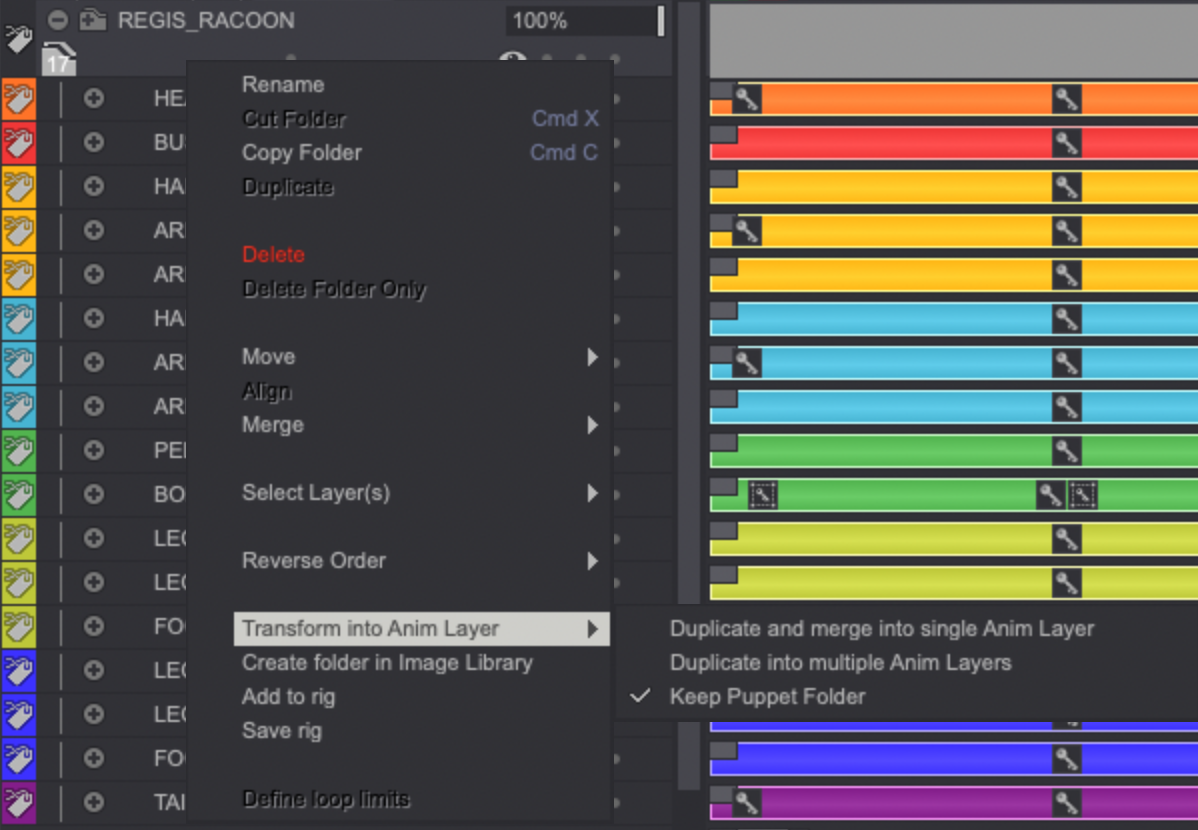
Several options are available, you can either:
- Duplicate the Puppet Layers and Merge them into a single Animation Layer.
- Duplicate the Puppet Layers and turn them into multiple Animation Layers.
The Keep Puppet Folder option must be turned on if you want the duplication of the Puppet Layers to work properly. If it is disabled, the Puppet Layers will be turned into Animation Layers without being duplicated.
You can also turn individual Puppet Layers into Animation Folders by right-clicking on them and selecting the Duplicate to Anim Layer option.