Adding elements
By default, when you create a Custom Panel through the New Custom Panel option, it will be empty: we will see how you can add elements to it below.
Here is how a newly created Panel looks like:

A RMB (right mouse button) click on an empty area of a Custom Panel will open the following menu:
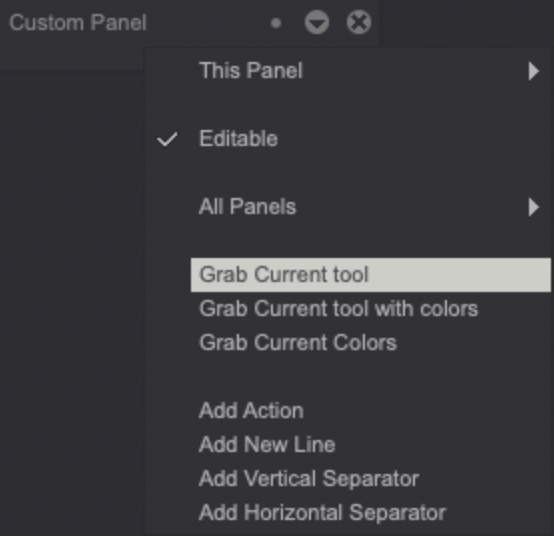
As you can see, you can add elements to your Custom Panel through the options described below:
-
Grab Current Tool allows you to save your Current Tool with all its settings and Connections. This action creates an icon for the Current Tool in your Custom Panel which can be clicked on to recall the saved Tool's settings.
-
Grab Current Tool with Colors does the same thing that the Grab Current Tool option but also saves the A and B Colors defined at the moment of grabbing.
-
Grab Current Colors helps you creating a color library by adding the Current Colors to your Custom Panel.
-
Add (an) Action or a series of actions (actions are covered in the subsequent pages of the user manual)
-
Add (a) New Line of icons to organize your Custom Panel.
-
Add Vertical and/or Horizontal Separators between your icons (right-click on the latter to remove them). Note that the horizontal separators can be collapsed to save space. They can be also named, by a right-clicking on them.
Be careful: when you save a Custom Panel, the Papers applied to your Tools are not saved. In other words, if you decide to save a Custom Panel, only the Brushes and their settings will be saved as a file.
This may not be too inconvenient if you relied on TVPaint's default Papers. However, if you have created and used your own textures, you will have to save and load them separately. Users custom Papers are located in the Papers sub-directory of TVPaint's Configuration folder:
- Windows: C:\Users<username>\AppData\Roaming\TVPaint Animation 12 (Pro)\config_name
- Mac: User/Home/Library/TVPaint Animation 12 (Pro)/config_name
- Linux: User/Home/.tvp/config_name