Overview
The Color Panel allows you to choose a color for the currently selected tool, as explained previously:
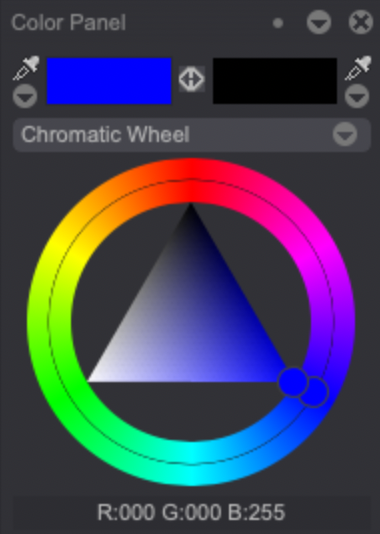
This panel's display can change depending on the Color Selection Mode you will have selected. 7 modes are available: A&B Colors, Slider, Picker, Mixer, Palette, Chromatic Wheel and Color Variation. Each one of them will be described in the following pages of the user manual.
You can select modes by clicking on the panel's drop down menu.
The Chromatic Wheel mode will be selected by default.
A value label is to be found at the bottom of the color panel. Its purpose is to indicate the RGB, HSL or hexadecimal values of the A color. You can click on the label to change the value system being used to describe the A color. This value label is not available for the A&B Colors and Slider color modes.
Opening several Color Panels
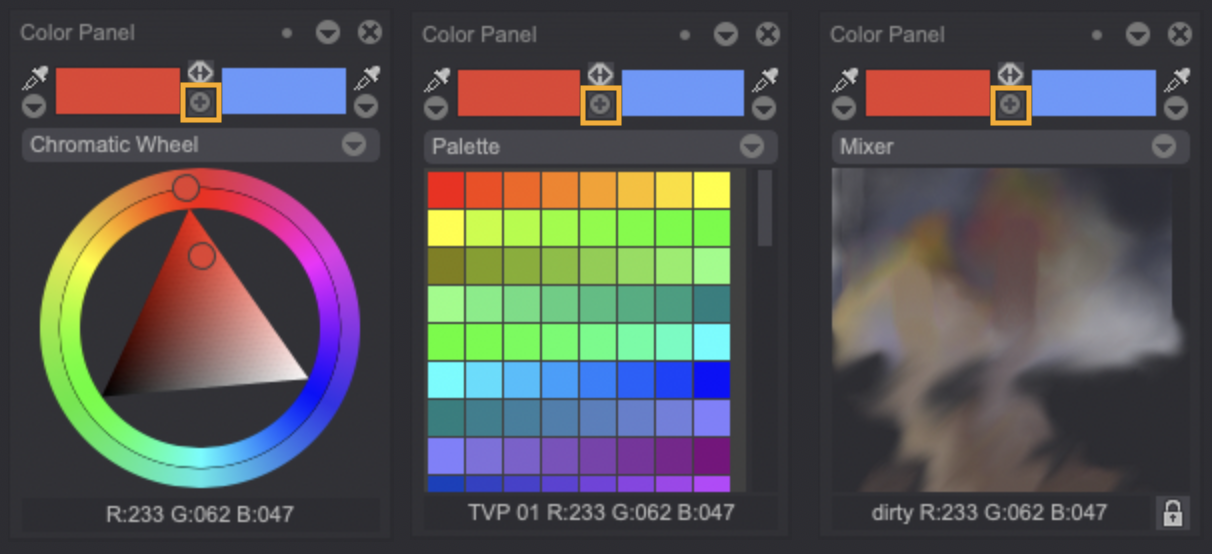
You can open up to three Color Panels, which can be useful if you'd like to have different displays at hand. To do so, simply click on the + (plus) icon pictured below. You can then set the new Panels to one of the modes described in the subsequent pages of the manual: